
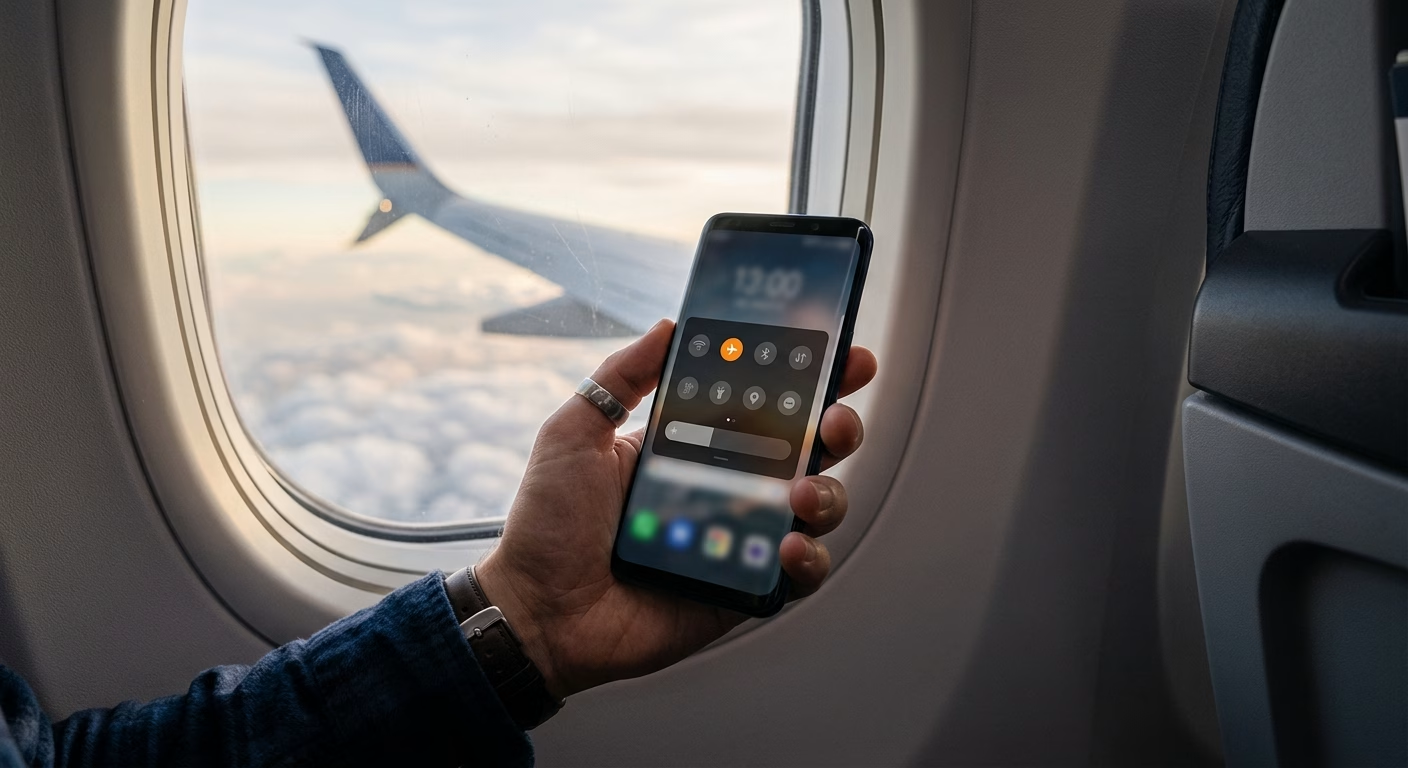
Airplane mode is a one-tap switch that cuts your phone’s cellular connection. With it on, your phone stops placing ordinary calls, sending standard texts, and using mobile data. For travelers, it does two jobs. It keeps you within airline rules in the air, and it stops your home SIM from running up roaming charges the moment you land.
This guide shows you how to use airplane mode on any device, what still works while it is on, and a simple landing routine that gets your Telekonek travel eSIM online without surprise bills.
Key takeaways
- Airplane mode turns off cellular service. You can switch Wi-Fi and Bluetooth back on separately.
- While it is on, your home SIM cannot roam, so it cannot run up roaming charges.
- It does not delete your eSIM or your plan. Turn it off and your lines reconnect.
- After landing, set your travel eSIM as your data line before you open any apps.
- Most airlines still require it during flights. The crew’s instructions always come first.
- It saves the most battery when your signal is weak.
What Does Airplane Mode Do?
Your phone is always talking to nearby cell towers. It checks in, hunts for a stronger signal, and listens for calls and texts. Airplane mode stops all of that at once.
When you turn it on, these switch off:
- Cellular calls and texts on every line, including a physical SIM and any eSIM.
- Mobile data, so apps cannot refresh over the cell network.
- Wi-Fi on most phones, though you can turn it back on right away.
Bluetooth works a little differently. On iPhone, Apple notes that airplane mode turns off every radio except Bluetooth. Your phone also remembers your choices. If you turn Wi-Fi back on during a flight, it stays on the next time you use airplane mode.
Here is what airplane mode does not do. It does not delete your eSIM, erase your plan, or power off your phone. Your offline maps, boarding passes, photos, and saved hotel details stay right where they are.
Takeaway: Airplane mode pauses your connection to cell towers. Everything stored on your phone keeps working.
How to Turn Airplane Mode On and Off
The quickest route on any device is the quick settings panel. Use the full Settings menu when you want to double-check the switch after landing.
iPhone and iPad
- Swipe down from the top-right corner to open Control Center.
- Tap the airplane icon. Orange means airplane mode is on.
- Tap it again to turn it off.
- On older models with a Home button, swipe up from the bottom edge instead.
- You can also go to Settings and use the Airplane Mode switch at the top.
Android phones and tablets
- Swipe down from the top of the screen twice to open Quick Settings.
- Tap Airplane mode, then tap it again to reconnect.
- On a Google Pixel, go to Settings > Network & internet > Airplane mode.
- On a Samsung Galaxy, go to Settings > Connections. Depending on your region, the switch is called Airplane mode or Flight mode.
The tile can move after a software update. If you cannot find it, type “airplane mode” into the Settings search bar.
Apple Watch: Press the side button to open Control Center, then tap the airplane icon. To link it to your iPhone, open the Apple Watch app, tap General > Airplane Mode, and turn on Mirror iPhone.
Windows laptops: Press Windows + A and select Airplane mode. You can also find it under Settings > Network & internet.
Mac: macOS has no airplane mode switch. Open Control Center in the menu bar and turn off Wi-Fi and Bluetooth one by one.
Takeaway: Use quick settings for speed. Use the Settings menu to confirm the switch is really off after you land.
What Still Works in Airplane Mode?
Airplane mode does not have to mean fully offline. Many useful features keep working, and you can add Wi-Fi back in seconds.
- Wi-Fi: Turn it back on to join in-flight, airport, or hotel Wi-Fi. Your cell connection stays off.
- Bluetooth: Wireless headphones, keyboards, and smartwatches keep working.
- Messaging apps: WhatsApp, iMessage, and similar apps send and receive over Wi-Fi.
- GPS: Many phones can still find your location. Offline maps work, but live traffic needs a connection.
- Alarms, camera, and downloads: These are stored on your phone, so they work as normal.
Some things wait until you reconnect. Calls to your usual number usually go to voicemail. Standard texts are held by the network and arrive later. SMS verification codes also wait, so plan any bank or app logins for after you land.
Many airport, hotel, and café networks use a captive portal. That is a web page where you accept terms or enter a room number before the internet works. If the Wi-Fi icon shows but nothing loads, open a browser to bring up the sign-in page.
Watch out for lookalike networks. Anyone can name a Wi-Fi network after an airport or hotel. Confirm the exact network name with staff or official signs before you enter passwords or payment details.
Emergency calls: Some phones let you dial emergency services with airplane mode on, and some switch it off briefly to connect. It is not guaranteed. Google notes that Android’s Emergency SOS feature does not work in airplane mode. In a real emergency on the ground, turn airplane mode off first.
Takeaway: Wi-Fi, Bluetooth, GPS, and offline content still work. Calls, texts, and emergency calling are the things to plan around.
Does Airplane Mode Stop Roaming Charges?
Yes, for as long as it stays on. Your phone cannot reach any network, so it cannot use roaming data, place roaming calls, or send roaming texts. Apple lists lower roaming charges as one of airplane mode’s benefits.
The catch comes when you switch it off. If your home SIM is set to roam, it can start using data within seconds. Apps refresh in the background, photos back up, and updates download. Incoming calls on your home number may also be billed at roaming rates, depending on your carrier.
Airplane mode vs turning off data roaming: These tools work best together.
- Airplane mode is the blanket switch. Use it during the flight and for the first minutes after landing, while you check your settings.
- Data Roaming off is the lasting fix. Set it per line, so your home SIM stays off roaming data for the whole trip.
Not sure where the setting lives? Follow this guide on how to turn data roaming on or off on iPhone, line by line.
Watch out for in-flight cell networks. Some European airlines now run a small cell network on board. If airplane mode is off, your phone may connect to it. Your home carrier usually bills those connections at special in-flight rates, which can be far higher than normal roaming. Keeping airplane mode on avoids them.
Takeaway: Airplane mode stops roaming charges while it is on. Turn off data roaming on your home line before you switch it off.
How to Use Airplane Mode When You Land
The first five minutes after landing are when most roaming surprises happen. This routine keeps your home line quiet and gets your travel data working fast.
- Keep airplane mode on until the crew says you can use your phone.
- Turn on Wi-Fi if you like. Airport Wi-Fi is handy for checking messages while you wait.
- Check your line settings. Set your Telekonek line as the cellular data line. Turn Data Roaming on for that line and off for your home line.
- Turn airplane mode off. Give your phone a minute or two to register on the local network.
- Test the connection. Load a web page. If nothing happens, turn airplane mode on for about 10 seconds, then off again. That forces your phone to search for a fresh signal.
Your home line stays active for calls and texts, so you can still receive verification codes on your usual number. Your travel eSIM handles the data for maps, ride pickups, and messages.
Install your eSIM before you fly, while you still have home Wi-Fi. Telekonek covers 200+ countries, so you can pick your plan from the same place whether you are landing in the United States or Tokyo. To size your plan, see how much data you need when traveling.
Heading to more than one country? Your eSIM stays installed from trip to trip. Add a top-up for your next destination instead of installing a new eSIM, then repeat the same landing routine.
Takeaway: Check your data line and roaming settings with airplane mode still on. Then switch it off and let your travel eSIM connect.
Do You Still Need Airplane Mode on Flights?
On most flights, yes. The rules depend on where the airline is based and what equipment the aircraft carries. In every case, the crew’s instructions come first.
In the United States, FCC rules have barred using cell phones while a plane is in the air since 1991. The main concern is interference with cell networks on the ground, not just with the aircraft. U.S. airlines require airplane mode from the time the doors close until you land.
In Europe, rules changed in 2023. Airlines may now offer 5G on board through a small cell unit on the aircraft, which connects through the plane’s satellite link. It only works on equipped aircraft, and only when the airline says so. Most flights still ask for airplane mode.
Elsewhere, many regulators let you use your phone for the whole flight, as long as it is in airplane mode.
- Turn airplane mode on when the doors close or the crew asks.
- Join in-flight Wi-Fi only when the crew says it is available. Wi-Fi access is not permission to reconnect to a cell network.
- Follow stowage instructions for laptops and tablets during takeoff and landing.
- Do not rely on “cellular data off” as a substitute. It can leave other cellular functions running.
Takeaway: Treat airplane mode as required on every flight unless your airline clearly says otherwise.
Does Airplane Mode Save Battery?
Yes, especially when your signal is weak. A phone with poor coverage keeps boosting its power and searching for a tower. That drains the battery fast on mountain roads, rural trains, and deep inside concrete terminals.
Airplane mode ends that search. Your screen, camera, and GPS still use power, but the cell radio stops draining the battery in the background.
- Phones: You get the biggest gain in no-signal or weak-signal areas.
- Wi-Fi-only tablets: The gain is smaller, since there is no cell radio to switch off.
- Laptops: Screen brightness is still the main drain.
- Smartwatches: Cellular models gain the most when they are away from your phone.
Airplane mode is not a magic fix, though. If you turn Wi-Fi back on and stream video for three hours, your battery will still run down. Download shows, music, and maps on hotel Wi-Fi so you can stay offline longer.
Takeaway: Airplane mode saves the most power when your phone is struggling for signal.
Airplane Mode FAQ
Should airplane mode be on or off when you are not flying?
Leave it off for everyday use. Turn it on when you want to block roaming, save battery in a no-signal area, or get some quiet.
What is the difference between airplane mode and Do Not Disturb?
Do Not Disturb silences alerts but keeps you connected. Messages still arrive, and your phone can still roam. Airplane mode cuts the connection itself.
Can people see your location in airplane mode?
Location-sharing apps usually show your last known location until you reconnect. If you turn Wi-Fi back on, apps can update your location over Wi-Fi.
Does your alarm still work in airplane mode?
Yes. Alarms are stored on your phone and do not need a connection.
Does airplane mode make your phone charge faster?
Slightly. With the cell radio off, your phone uses less power while it charges. The difference is usually small.
Will airplane mode delete my eSIM?
No. Your eSIM and your plan stay installed. Airplane mode only pauses the connection.
What happens if you forget to turn airplane mode off?
You will miss calls and texts, and apps will not refresh over mobile data. Cached content can make your phone look connected when it is not. If maps or messages seem stuck, check the airplane icon first.
Before your next trip, install your eSIM at home, set your data line, and let airplane mode handle the rest. Browse Telekonek plans for 200+ countries and land connected.