
Understanding International Roaming: What You Need to Know
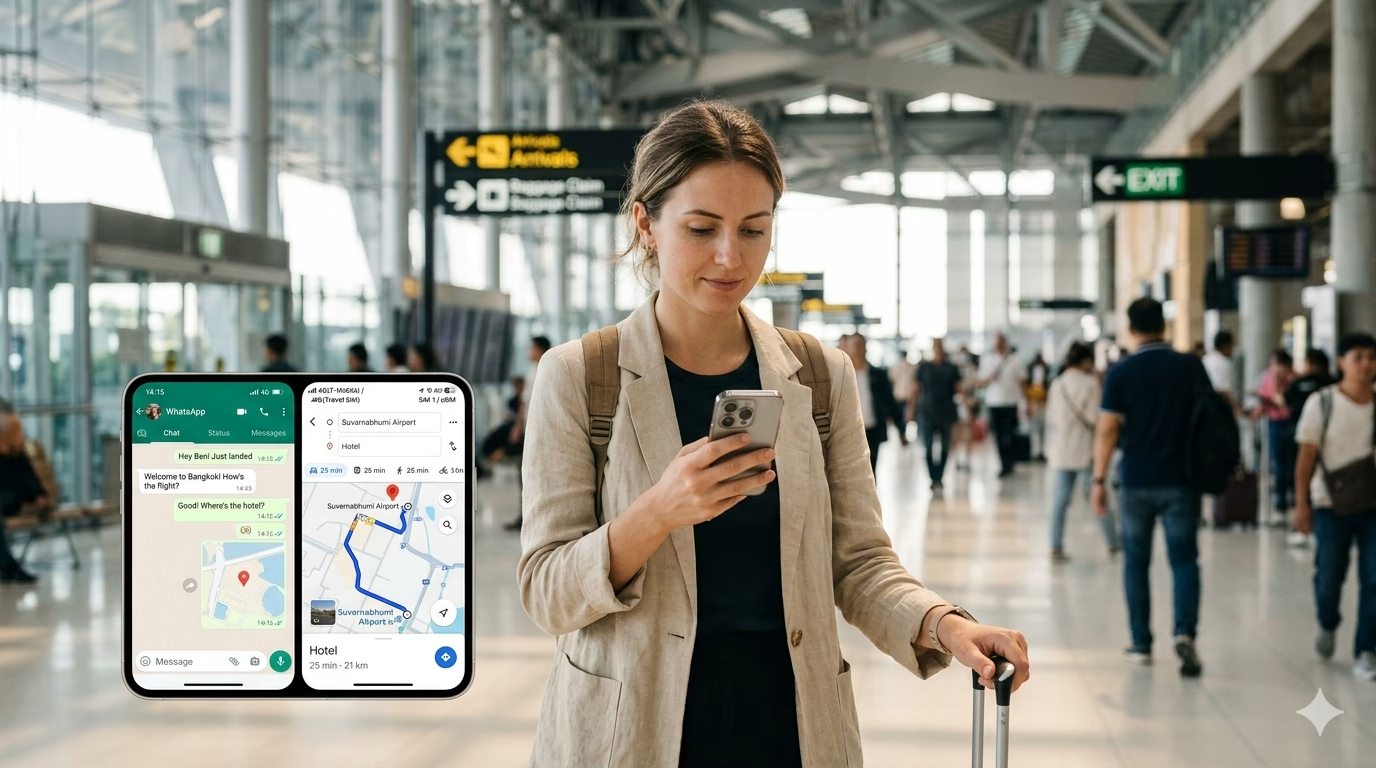
International roaming is what happens when your phone uses a foreign mobile network because your home carrier doesn’t have towers in the country you’re visiting. Your SIM stays the same, your phone number stays the same, and your carrier “rents” access from a local operator through roaming agreements. When you’re weighing international roaming vs eSIM for WhatsApp, roaming is the default option—your phone will often connect automatically the moment you switch off airplane mode after landing.
Behind the scenes, your carrier has to authenticate your SIM on a partner network, then route your calls/SMS and data back through its systems for billing. That routing is why roaming can feel a little “laggy” at times, especially for WhatsApp voice notes and calls: your data path may be less direct than a local plan. You’ll also notice roaming behaves differently depending on where you are—big airports and city centers usually connect fast, while border regions sometimes bounce between networks and trigger multiple roaming sessions.
Roaming charges typically come in three buckets, and the expensive one is data:
- Daily roaming passes (common with US/UK/EU carriers): expect roughly $5–$15/day (2026 range) for a fixed allowance (sometimes “unlimited” with speed caps). Convenient, but pricey on longer trips.
- Pay-as-you-go data: can be brutally high—often $5–$15 per MB on some plans/countries. A few minutes of WhatsApp video calling can quietly become a bill shock.
- Calls & SMS: commonly $0.25–$2/min for calls and $0.10–$0.50/SMS (varies widely). WhatsApp messages use data, not SMS, but SMS can still matter for bank logins and two-factor codes.
What goes wrong most often is travelers assuming “Wi‑Fi only” protects them, then discovering that background data (cloud photo uploads, app updates, iMessage/RCS retries, WhatsApp media auto-download) slipped through the moment the phone saw a network. If you must rely on roaming, set a hard rule before you fly: turn off Data Roaming, disable Wi‑Fi Assist/Adaptive Connectivity, and set WhatsApp to never auto-download media on cellular. Also screenshot your carrier’s roaming rates—airport Wi‑Fi portals aren’t the time to hunt through account pages.
Because this topic is really about keeping WhatsApp reliable abroad—messages, calls, location pins—dependable data matters as much as the sticker price. With Telekonek you install the eSIM once and it stays on your phone for good; when you land somewhere new, you just top up a data plan for that country—no reinstalling, no SIM tray, no kiosk. It covers 200+ countries, top-ups start from around $4, and between trips the eSIM sits dormant and costs you nothing. You can see the full list on the Telekonek destinations page.
What is eSIM and Why It’s a Game Changer
An eSIM (embedded SIM) is a digital version of the plastic SIM card—built into your phone as a chip. Instead of swapping cards at a kiosk, you download a carrier “profile” by scanning a QR code or using an in-app setup, and your phone connects to the network like it would with a physical SIM. The big win for WhatsApp is that an eSIM lets you add a travel data line without touching your primary SIM, so your WhatsApp account stays tied to your usual number while you use cheaper, local-style data abroad.
In practice, an eSIM changes the first hour after you land. With roaming, you’re often at the mercy of whatever partner network your home carrier picks; with an eSIM, you can arrive with data already configured and just turn it on when the wheels hit the runway. That means you can message your driver on WhatsApp, pull up Google Maps, and translate signs immediately—no airport Wi‑Fi hunt, no SIM tray pin, no “out of service” panic in the arrivals hall. With Telekonek you install the eSIM a single time, then top up per destination, so it’s ready the moment you land on your next trip too—no second setup.
An eSIM also keeps your setup cleaner on the road. Most modern phones let you run dual SIM (your home SIM + travel eSIM), so calls/SMS to your home number can still come through while WhatsApp uses the eSIM’s data.
- Convenience: Set it up before you fly; no shop hours, no language barrier at a telecom counter.
- Security: No tiny SIM to lose in a café table crack; no last-minute SIM swaps that trigger banking “new device” checks.
- Flexibility: Top up data for a side trip (e.g., a weekend hop to another country) without canceling or reinstalling anything.
Watch out for: not every phone supports eSIM, and some carrier-locked devices won’t allow adding a travel profile. Check your settings before departure (look for “Add eSIM” or “Add Mobile Plan”). Once your Telekonek eSIM is installed, you keep the same profile for every trip—only the data plan changes—so there’s no reinstalling and no new QR code to chase later.
Comparing Costs: International Roaming vs eSIM for WhatsApp
When you compare international roaming vs eSIM for WhatsApp, the cost difference usually comes down to one thing: roaming charges are priced for convenience, while eSIM data is priced closer to local rates. WhatsApp itself doesn’t charge to message, but it’s constantly using data for message delivery, link previews, voice notes, backups (if you let it), and especially calls—so “I’m only texting” can still create a bill surprise.
International roaming costs tend to land in three buckets, depending on your home carrier: daily passes, pay‑as‑you‑go data, or “included” roaming with strict limits. In 2026, many travelers see daily passes around $5–$15/day, which sounds fine until you’re away for 10–14 days. Pay‑as‑you‑go is where things go wrong: $5–$15 per MB still exists in some plans, and a short WhatsApp voice call (or a few photo messages) can chew through MBs fast. Even “unlimited” roaming often slows after a small high-speed allowance; WhatsApp text will still work, but sending photos/videos can crawl.
With a travel eSIM, you top up a set amount of data for a set price, so you can match the plan to your WhatsApp habits. As a realistic 2026 range, common travel eSIM pricing looks like:
- Light WhatsApp use (texts, a few photos): 1–3 GB for roughly $4–$20
- Moderate (daily voice notes, photo sharing, a few calls): 5–10 GB for roughly $15–$40
- Heavy (frequent WhatsApp calls/video, lots of media): 10–20 GB for roughly $30–$70
A practical way to see the math: a 12-day trip on a $10/day roaming pass is about $120. A mid-tier eSIM top-up in many regions runs $20–$40 for enough data to message daily and make occasional WhatsApp calls—while keeping your primary SIM active for incoming texts/2FA. With Telekonek you install once and top up per country across 200+ countries (from around $4), and pay nothing between trips since there’s no subscription.
Watch out for the hidden cost traps: roaming can trigger background usage the moment you arrive—cloud photo sync, app updates, and WhatsApp media auto-download. If you stick with roaming, turn on Low Data Mode (iOS) or Data Saver (Android) and set WhatsApp to disable auto-download on cellular. If you go eSIM, double-check which line your phone uses for Cellular Data, and keep Data Roaming OFF on your home line—this one setting is the difference between a controlled WhatsApp budget and an expensive mistake.
Setting Up WhatsApp for International Travel: Tips and Tricks
Before you settle the roaming-versus-eSIM question, lock down WhatsApp so it behaves predictably the minute you land. Do this at home on Wi‑Fi (not at the airport), because the two things that go wrong most often are verification SMS not arriving and iCloud/Google Drive backups trying to upload on cellular at the worst possible time.
1) Confirm your WhatsApp number stays the same. WhatsApp accounts are tied to your phone number, not your SIM. If you keep your primary SIM active for SMS (or at least reachable via Wi‑Fi calling), you don’t need to change anything. The trap: inserting a local physical SIM and then tapping “Change Number” inside WhatsApp—don’t do that unless you truly want to migrate your account.
- Settings → Account → Two-step verification: turn it on and add an email you can access abroad.
- Settings → Account → Security: review devices (WhatsApp Web/Desktop) and log out of anything you don’t recognize.
2) Set data controls so WhatsApp doesn’t eat your plan. On iOS/Android in WhatsApp: Settings → Storage and Data. Turn Media auto-download to “Wi‑Fi only” (especially in group chats), and set Auto-download media off for videos. If you use WhatsApp calling, flip Use less data for calls on—voice quality drops slightly, but it prevents surprise usage on patchy networks.
3) Backups: do one clean backup, then stop them from roaming. Right before departure, run a manual backup on Wi‑Fi. After that, set backups to Wi‑Fi only so you don’t accidentally upload gigabytes over cellular.
- iPhone: WhatsApp → Settings → Chats → Chat Backup → Auto Backup: Off (or Daily on Wi‑Fi only). Also check iOS Settings → Cellular → WhatsApp (toggle off if you’re being strict).
- Android: WhatsApp → Settings → Chats → Chat backup → Back up over: Wi‑Fi; Google Drive backup frequency set to weekly or off during the trip.
4) Build an “offline” emergency contact plan. Add a pinned chat to yourself (or a travel buddy) with essentials: passport number (partial), insurer hotline, hotel address in the local language, and a screenshot of your eSIM QR code. Also add at least one contact outside WhatsApp (saved in your phone + written down) in case WhatsApp is blocked or your phone is lost.
5) Connectivity setup that actually works at arrivals. Get your eSIM ready before you fly. With Telekonek you install the eSIM once on home Wi‑Fi and top up a data plan for your destination; on arrival, keep your primary SIM for calls/SMS and set Telekonek as your cellular data line. This avoids the classic airport failure mode: roaming accidentally turns on, WhatsApp starts syncing photos, and you discover the bill later.
How to Activate eSIM for WhatsApp on Different Devices
Activation is the make-or-break moment: WhatsApp itself is already set up (you did the backup and number checks earlier), but you need reliable data the minute you step off the plane so messages, maps, and ride-hailing work without a “searching…” spiral. With Telekonek this is a one-time job—install it the night before your first trip, and on every trip after that you skip straight to topping up data for wherever you’re headed.
Before you start (2-minute checklist) — do this on stable Wi‑Fi:
- Confirm your phone is eSIM-capable and carrier-unlocked (Settings > General > About on iPhone; Settings > About phone / SIM status on Android varies).
- Keep your primary SIM active if you need bank OTPs/verification texts while abroad.
- Have the QR code ready (screenshot it or open it on a second device). iPhones can’t scan a QR displayed on the same screen.
iPhone (iOS 16/17/18): activate eSIM for WhatsApp data
- Go to Settings > Cellular (or Mobile Service) > Add eSIM.
- Tap Use QR Code and scan your Telekonek QR.
- Label lines clearly: set your home line as Primary and the new one as Travel/Data.
- Under Cellular Data, select Travel/Data (this is what keeps WhatsApp running on the cheaper data line).
- Turn Data Roaming ON for the eSIM only (counterintuitive, but travel eSIMs require it). Leave roaming OFF on your Primary line to avoid accidental charges.
- (Optional but useful) Set Default Voice Line to Primary so iMessage/FaceTime and calls still behave normally.
Android (Samsung Galaxy / Pixel): activate eSIM for WhatsApp data
- Go to Settings > Network & internet > SIMs (Pixel) or Settings > Connections > SIM manager (Samsung).
- Select Add eSIM > Scan QR code, then scan the Telekonek QR.
- Set Mobile data to the eSIM (look for “Preferred SIM for Mobile data”).
- Enable Data roaming for the eSIM profile if required by the plan.
- If your phone supports it, enable Wi‑Fi Calling on your primary SIM before you leave home—handy for receiving SMS when you’re on hotel Wi‑Fi.
What usually goes wrong (and how to fix it fast)
- No data after activation: you likely forgot to switch Cellular Data (iPhone) / Preferred SIM for mobile data (Android) to the eSIM, or Data Roaming is off for the eSIM.
- QR code “already used”: you only scan the Telekonek QR once, at first install—after that you don’t re-scan or delete it, since each new trip is just a top-up, so this shouldn’t come up.
- WhatsApp suddenly asks to verify your number: don’t rush. Tap Cancel unless you’re intentionally changing numbers—your WhatsApp account should stay on your original number even while using eSIM data.
Once the eSIM is active and set as your data line, WhatsApp will behave exactly as it did at home—same chats, same number—just running over your travel data instead of expensive roaming.
Navigating Mobile Data Usage on WhatsApp in Different Countries
WhatsApp’s data appetite doesn’t change when you cross a border—but the way that data gets billed, throttled, or quietly eaten by network quirks absolutely does. That’s the real-world difference travelers feel: in some countries you’ll cruise on 4G/5G with cheap data, and in others you’ll hit congestion, patchy coverage, or strict “fair use” limits that make voice notes and calls feel expensive.
In places with fast, dense networks (think Japan, South Korea, Singapore), WhatsApp calls are tempting—and that’s where usage spikes. A 10‑minute WhatsApp voice call can land around 4–8 MB, while a 10‑minute video call can easily jump into 50–150+ MB depending on quality and stability (2026 real-world range). Meanwhile, in island destinations or mountains (parts of Greece, Bali, Costa Rica), the network may bounce between LTE/3G; WhatsApp will retry sends and calls, which can burn extra data and battery even if the call “fails.”
- Text-only messaging: typically tiny (often <1 MB/day for normal chat).
- Voice notes: great value—short notes are usually a few hundred KB to a couple MB.
- Photos/videos in groups: the silent killer—especially when multiple people share 20–50 MB clips.
Optimize WhatsApp by country reality, not theory: In high-cost roaming regions (often the Caribbean and some smaller African/remote markets depending on your home carrier), treat video as “Wi‑Fi only.” In the EU, roaming can be reasonable for EU residents, but travelers arriving with non‑EU SIMs often still get stung—so manage usage like you’re on a metered plan. In the US/Canada, speeds are usually fine, but coverage gaps on highways can cause repeated retries; download maps on Wi‑Fi and don’t rely on a long WhatsApp call mid-drive.
Concrete settings that actually move the needle (and stop those surprise spikes):
- WhatsApp → Settings → Storage and Data: set Media auto-download to “Wi‑Fi only” for photos/videos.
- Turn off “Upload quality” for HD unless you truly need it (HD uploads can be 2–4× larger).
- Disable link previews if you’re on a tiny plan (previews trigger extra fetches in some chats).
- iOS: Settings → Cellular → toggle WhatsApp off/on depending on when you want it live; Low Data Mode helps in expensive markets.
- Android: Settings → Network & Internet → Data Saver; optionally set WhatsApp as “restricted background” if you don’t need instant delivery.
Watch out for the one thing that ruins data budgets: WhatsApp backups. If iCloud/Google Drive backup is allowed on cellular, it can chew through hundreds of MB (or more) after a day of photos and group videos. Keep backups on Wi‑Fi only while traveling, especially if your plan is 1–3 GB.
The reason continuous connectivity matters here is that WhatsApp is often your lifeline for airport pickups, hotel door codes, and last-minute itinerary changes. Having one eSIM that’s already on your phone—topped up for each country as you go—keeps messages flowing the moment you land, instead of going dark while you hunt for a kiosk or gamble on airport Wi‑Fi.
Choosing the Right Telekonek Plan for Your WhatsApp Habits
Because WhatsApp’s data use is fairly predictable, you can match your Telekonek top-up to how you actually message. Use the usage tiers above as a guide: light texters and occasional photo-senders are fine on a small 1–3 GB top-up, daily voice-note-and-photo users sit comfortably in the 5–10 GB range, and if you live in WhatsApp video or share lots of media, size up to 10–20 GB so you’re never rationing.
A few practical things to get right when you pick a plan:
- Hotspot/tethering: if you’ll connect a laptop or share with a travel buddy, choose a top-up that allows tethering and add a little headroom—WhatsApp Web and backups pull more than you’d expect.
- Coverage buffer: data behaves differently in mountains, on islands, and on trains, so if your route includes places like the Scottish Highlands or the Greek islands, keep a small buffer of extra data for when Wi‑Fi fails.
- One eSIM, many countries: because Telekonek installs once and tops up per destination, a multi-country trip is just a series of top-ups on the same eSIM—no new setup at each border.
That last point is the real convenience when WhatsApp is your lifeline for family, drivers, hotel check-ins, and 2FA texts: you cross from one country to the next and simply keep messaging, without re-buying or reinstalling anything.
Real Traveler Experiences: International Roaming vs eSIM for WhatsApp
Nothing clarifies the roaming-versus-eSIM choice like the moment you step off a plane and your first message hangs on a single gray tick. The right call usually depends on whether you value simplicity (roaming) or cost control + predictable data (eSIM). Here are three common scenarios that show how it plays out.
Scenario #1: London → Paris weekend (roaming pass win… until it isn’t). Roaming can feel frictionless—airplane mode off, WhatsApp working instantly, no settings to touch. The catch shows up when a carrier’s “daily pass” quietly renews after midnight local time: send a few late-night WhatsApp location pins and you can trigger a second billing day without realizing it. The lesson: roaming is fine when you’re disciplined about time zones and know exactly when the billing day resets.
Scenario #2: Mexico City for 10 days (eSIM win for WhatsApp calls). Using an eSIM for data while keeping the home SIM for SMS gives you a stable data bucket, so you’re not “saving data” and hopping onto spotty café Wi‑Fi for every WhatsApp call. One common day-one snag: an iPhone may route iMessage/FaceTime over the travel line and burn data faster than expected. The fix is to set Cellular Data to the eSIM, turn off “Wi‑Fi Assist,” and limit iCloud backup to Wi‑Fi only.
Scenario #3: multi-country Balkans road trip (where roaming gets messy). On a Croatia → Bosnia → Montenegro drive, roaming can be “fine” in a city like Dubrovnik and then fall apart at borders: brief service drops mean WhatsApp messages pile up and send all at once—right when you need maps and border-wait updates. A travel eSIM handles those transitions more gracefully, which matters because WhatsApp here isn’t just chatting—it’s navigation pins, host check-ins, and emergency coordination. Because Telekonek tops up per country on the same eSIM, a route like this is just a sequence of top-ups—no border-town scramble for signal or random Wi‑Fi.
- Roaming fans consistently cite: zero setup, their number “just works,” and fewer settings to touch.
- eSIM fans consistently cite: no bill surprises, better control over WhatsApp call habits, and easier multi-country coverage planning.
What goes wrong (and how to avoid it): the most common eSIM complaint isn’t coverage—it’s misconfigured defaults. People forget to set the eSIM as Cellular Data, accidentally leave data roaming on for their home SIM, or let WhatsApp start media auto-download on cellular. The smoothest trips tend to follow the same habit: land, send one WhatsApp message, make one short call, then immediately check the phone’s data usage to confirm the right line is being billed.
Troubleshooting Connectivity Issues While Traveling
When WhatsApp “breaks” abroad, it’s usually not WhatsApp—it’s the connection underneath it. With international roaming vs eSIM for WhatsApp, the failure modes differ: roaming problems often come from carrier permissions (data roaming blocked, partner network quirks), while eSIM problems are more often a setup or routing issue (wrong line selected for data, profile not fully registered).
First triage (30 seconds): open Safari/Chrome and load a simple site. If web pages don’t load, stop reinstalling WhatsApp—fix data first. If the web works but WhatsApp doesn’t, force-close WhatsApp and toggle airplane mode for 10 seconds; that refreshes network registration and often clears the “single gray tick” limbo.
- Roaming not working: Settings → Cellular/Mobile → Data Roaming ON. Then manually select a network: on iPhone, Settings → Cellular → Network Selection → turn off “Automatic” and try the carriers listed. Some roaming agreements are flaky on one partner but fine on another.
- eSIM installed but no data: confirm the eSIM line is set as Cellular Data (iPhone: Settings → Cellular → Cellular Data; Android: Settings → Network & Internet → SIMs). Also disable “Allow Cellular Data Switching” if your phone keeps bouncing back to your home SIM with no service.
- WhatsApp calls fail but texts work: you’re likely on a congested network or restricted VoIP. Switch from 5G to LTE/4G (often more stable), and turn on WhatsApp’s Low Data Usage for calls (Settings → Storage and Data).
What goes wrong more than people admit: captive Wi‑Fi portals. Airports and hotels may show “connected” but silently block WhatsApp until you open a browser and accept terms. If WhatsApp is stuck “Connecting…”, try loading any webpage; if a login page appears, complete it, then reopen WhatsApp.
Verification and number issues are the other headache. If WhatsApp prompts to re-verify your number mid-trip, don’t rush—verification SMS may go to your home SIM. If you’re using an eSIM for data, keep your primary SIM enabled for SMS (or enable Wi‑Fi Calling before you leave, if your carrier supports it) so you can receive codes without paying for a full roaming day.
Because staying connected is the whole point, set up your data before you fly and keep a note with your phone’s key toggles (Cellular Data line, Data Roaming, Network Selection) so you can fix things quickly without Googling on bad Wi‑Fi. With Telekonek already on your phone and topped up for your destination across 200+ countries, you can land, switch data on, and message on WhatsApp straight away.